Monday, February 20, 2017

Top 10 actions to troubleshoot performance of Dynamics AX Master Planning

I wanted to write this blog post after a couple of Dynamics AX Performance Review where the Targeted scenario was execution of the MRP Batch. Every situation is different but there are similarities as well, especially when it comes to troubleshooting and patterns for improving performance.
The objective of this article is to describe top 10 settings, based on experience from the field, that can help you improve the performance of MRP:

1. Fine tuning using iteration

Because it is often not possible to reproduce the same performance issue in another environment than production, the idea is really to get stable and consistent runs to test every change.
Collect all the configurations and design a change matrix so you can clearly map the impact of each change. This, of course, implies that only one setting is changed at a time.
Each customer will have different constraints, and therefore different goals: onehour maximum every night or 3 hours maximum every week end. It is important to set the right expectation so that analysis can be stopped when the target is reached. Finally, the monitoring should always continue because execution time will evolve due to data composition, growth and business change. 
Note: if you want to reproduce the MRP issues in your dedicated Test environment, you should use the same backup of the Dynamics AX Database. Also, the backup should be taken from Production before the MRP is executed so relevant transactional data exists for the MRP execution.

2. Optimize Thread and Bundle

There is no magic to calculate the best number of thread for your instance. I have personally seen MRP running faster when threads were decreased from 32 to 4, and other increased up to 96 threads. Number of threads is defined by the number of AOS Batch server allocated to the Batch group of the MRP execution and the number of threads available per AOS server (System administration - System - Server configuration). By default, there are 8 threads per AOS so with 3 AOS enabled for batch and allocated to the batch group, you have up to 24 threads at your disposal.
Then you can define the number of helpers (threads) in the parameter of the Master Plan (Master planning – Periodic – Master Scheduling – tab Scheduling helpers). The threads created by the batch job will be assigned to all the AOS threads. This means that number of helpers should be less than the number of threads allowed. 
Another important factor that can be adjusted is the number of tasks in helper task bundle. Master planning helpers allow independent processes to run in parallel. This results in a substantial reduction in calculation time, since items on the same level in the BOM do not necessarily conflict with each other, and can therefore be distributed across multiple processes.
There is no formula to easily estimate the best number of items (task) in a sequence (bundle). If you have complex Bill of Materials (B.O.M.) structure and some items with a lot of opened requirements, it is better to lower the value. If you have a lot of items with similar demand, it is better to have a higher value. By default, the value is 50 but we have seen MRP running faster with a value of 2 and some other were improved with a value 1000.
You can define the number of tasks in the Master planning parameters (Master planning – Setup – Master planning parameters – group Performance). Here you should also set the Use of cache to the Maximum:
 3. Scale up AOS resources
We know Dynamics AX 2012 AOS can scale up more than previous version thanks to its native x64 application. For AOS dedicated to rich users, we typically recommend to have 8 processors and 16 GB of memory per VM and as many AOS as required in the OLTP cluster. But for the AOS dedicated to batch processing and MRP task, it can be worth having more resource on the server. I have seen several customers where the AOS Service consumed up to 50 GB of physical memory during the MRP execution. So it is not always better to increase multi-threading.
So the obvious recommendation is to make sure the AOS server is fully dedicated to the MRP. Also try to run MRP once at a time and outside business hours. It is especially important to make sure no other tasks are requiring locks on tables used by master planning such as InventTrans, InventSumLogTTS and ReqItemTable. You can check the contention on the database access using the SQL job “DYNPERF_Optional_Polling_for_Blocking” from DynamicsPerf tool:
You can verify the resource available using Windows Performance monitoring: minimum available memory, working set for Ax32SERV.exe and processor Time.

4. Increase cache if memory allows it

Once you know how much memory is consumed by the AOS process when MRP is running, you can start the tuning of cache settings.
For example, if the minimum memory available is too low, you can assume that memory is already a constraint. If the memory available is stable, then you can increase the level of cache for the specific AOS dedicated to batch. Remember that you can define the following settings for all AOS server or for one specific AOS server.
Go to System Administration > Setup > System > Server Configuration:
  • Set Entire Table Cache to 512 KB
  • Increase the Global Object Cache to 500,000
  • Increase Record Cache limit for Table type transaction to 100,000
  • Make sure all transactional tables belong to the transactional Table group
Go to Master Planning > Setup > Master planning parameters: Set Use of cache to Maximum
Note: you can manually take a dump to analyze the memory in case of high memory consumption.

5. Enable Windows Event Tracing on AOS

You should not collect traces for the long process like MRP because it can easily create very large file, easily more than 10 GB for several minutes. The strategy is to schedule the trace to be collected every 20 minutes for about 3 minutes. After importing the traces into Trace Parser, you can analyse which X++ code or SQL queries need to be improved during each phase of the MRP run:
  • Do not create missing index without checking the existing ones. Often, performance is degraded when too many indexes exist on the same table. Plus, most of them will not be used because they are already covered anyway.
  • We recommend to remove unused indexes when statistics have good lifetime (more than 6 months).
To use the Event Tracing for Windows (ETW) with the normal Microsoft Dynamics AX tracing providers, go to Performance Monitoring > Data Collector Set > Event Trace data.
When doing iteration, please also rename the Task Description so you can always remember which setting has been changed per run, such as: PROD_MRP_12012015_2300.etl. To collect the trace for the event MRP, you need to configure it using Performance Monitoring: After the trace is imported in Trace Parser, you can verify how many threads are running and compare them in details:

6. Check out index optimization

Like any long running Dynamics AX process, the best way to troubleshoot it is to collect traces using Windows Performance Monitoring and analyse them with Trace Parser:
  • You can then find out the expensive SQL queries, by logical read or average time.
  • Replay the query in SQL Server Management Studio to visualize the Query Plan
  • Use Dynamics Perf to investigate missing indexes on that table
  • Performance Analyser for Microsoft Dynamics
  • Test new index by replaying the same query
Finally, make sure the index maintenance is enabled and run index maintenance job before MRP. But please make sure no extensive SQL maintenance task is running at the same time as MRP.
Note: you can overwrite SQL parameters like Max Degree of Parallelism if there are only batch processing at night. However when changing MaxDop on the SQL instance level, the plan cache gets invalid.

7. Review session log

First you should look into the session log every MRP execution. Go to Master planning > Setup > Plan > Master plans > Session log > Statistics:
  • “Update” should not take long time, however it is singled threaded.
  • “Copy plan” and “Auto Firming” should not take long time
  • “Auto firming” should be less that coverage
  • Coverage should be the long running relatively
  • Action and Future message can take long depending on data and number of BOMs
This is the data from Contoso Company:

Then, you can enable the “Track Item task duration” during the MRP run to collect more details about the items and the tasks. It can help you to find the bottleneck, like which item is taking most of the time to optimize the task per bundle value. For exampe, you can check if long running items are assigned to the same bundle.
Go to Master planning > Periodic > Master Scheduling> Master plan:


Note: Go to Master Planning > Inquiries > Processes > Unfinished Scheduling Processes > Inquiries and Process Task Duration. However you can only see the details of every tasks during the execution of MRP.

8. Verify MRP parameters

Most of the following settings are recommended to avoid additional tasks that will increase master planning runtime by creating unnecessary planned ordered and by calculating optional information (however the business needs to validate any change because it will change the MRP results).
  • Use dynamic negative days parameter should be checked: The negative days setting is connected to the lead time of the items. If the negative days are less than the item's lead time, unnecessary planned orders may be created.
  • Positive days parameter on the coverage group should not be 0 or empty. If the positive days parameter on the coverage group is 0 or empty, then inventory will not be taken into account for planning and new planned orders will be created.
  • If action messages are not analysed and applied on a regular basis, you may want to disable the calculation by making sure the Action message time fence is 0 and disabling the Action message in the Coverage Group.
  • If you are not planning BOMs or if propagating delays from supply to demand during planning is not needed for you, consider disabling futures calculation during MRP, by making sure the Futures time fence is 0 and Futures setting is disabled.
  • If you are not using Auto firming, override the time fence on your Master Plan to avoid auto firm setup defined in the Coverage plan.
Go to Master Planning > Setup > Coverage Group. Note: you can also overwritte the settgins in the Master plan (Master planning - Setup - Plans - Master plans)


Advise: if you notice many error and warning messages in the session log of the MRP, we strongly recommend you to first run the Consistency Check and then to look at the messages as they can slow down the execution of the MRP.

9. Tune Application configuration

As many processes within the Dynamics AX application, there are several configurations that can have performance overhead when not properly set up. This is especially true for batch jobs where volume of transaction can be quite high. In this case, the contention you may have in regular business hours on one number sequence can become critical during the execution of the MRP.
  • Make sure there is no database logging enabled for the transactional tables involved in the MRP. Tracking Create-Update-Delete events can slow down any bulk SQL operations such as Insert_RecordSet and Update_RecordSet.
  • Disable alerts as well because they will not be relevant during the execution of MRP.
  • Consider Non Continuous Number sequence for all the ID involved during the MRP execution and enable Pre Allocation to facilitate the release of IDs. You can find the number sequences in Master planning > Setup > Master planning parameters > number Sequences tab
  • Turn off unnecessary Configuration keys that are not actively used. For example, Process Industries functionality, Retail or Public Sector.
  • Disable Context Info on AOS dedicated to batch Processing
Advise: you can use the tool DynamicsPerf and capture the statistics before and after the MRP execution to analyse the table growth and number sequences consumption.

10. Clean Up data

Standard tables that should be clean up on regular basis, for example customer may define a 3 months’ retention policy. You can also use DynamicsPerf tool and the Benchmark query to check the table growth during MRP. When not in production, you can have a more aggressive approach and delete all the data.
  • BATCHHISTORY
  • BATCHJOBHISTORY
  • BATCHCONSTRAINTSHISTORY
  • BATCHJOBALERTS
Also specific MRP temporary tables can be clean up:
  • ReqTrans
  • reqTransCov
  • reqPo
  • reqLog
  • REQPROCESSITEM
  • REQPROCESSLIST
  • REQPROCESSTHREADLIST
  • REQPROCESSTRANSFILTER
  • reqRoute
  • INVENTSUMLOGTTS
  • Reqcalctask
  • Reqcalctasksbundle
  • Requnscheduledorders
  • Reqcalctasktrace
  • Reqprocesslist
  • Reqprocessthreadlist
  • reqprocesstransfilter
All data related to inactive plan versions can be safely cleaned up. The data in the following tables will automatically be cleaned up by the subsequent MRP run.
  • Reqtrans
  • Reqtranscov
  • Reqpo
  • Reqroute
  • Reqroutejob
  • wrkctrcapres
Note: Table InventSumLogTTS should only be deleted when full MRP plan is executed. It should not be clean up when MRP is run against subset of item and with Net Change option or when Capable To Promise (CTP) is used.
 Finally, remember to look at all recent Hot Fixes available on Lifecycle Services with the keyword ‘MRP’ or any object starting with 'REQ' like Classes\ReqCalc or Tables\ReqTrans.
Regards,
@BertrandCaillet
Principal Premier Field Engineer
Original URL:

Friday, July 22, 2016

Update code live on multiple AOS

I find a trick to update code on an AX system with multiple AOS(s) without restarting the AOS services.

Let say you have 2 AOSs for users to access. If you do the code in AOS1. You will need to run AX on the AOS2 and compile the code you just changed in the AOS1. That way both AOSs will be updated transparently to users.

Of course in some cases, users will just have to restart their session to get the new update.

Friday, April 8, 2016

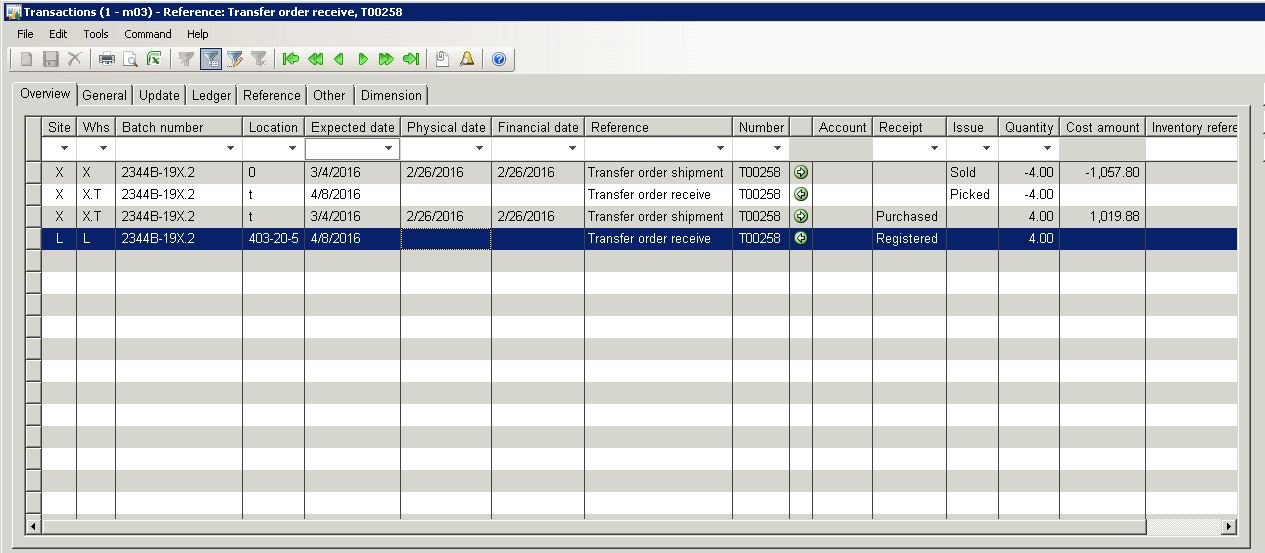
Transfer Order Shipment and Receive Transaction looks like

For those who have issues with receiving transfer order from shipment and item arrival where some quantity of the same item with same dimension get received and the rest got updated wrong.

This is the screen when the Transfer order is picked from the original location and wait to be shipped from shipment form.


This is the screen for an item on item transaction form should look like before you receive the item from item arrival form. In the example below I transfer item from site X to site L, X.T is transit warehouse.


And this is the screen after it is received.


Monday, March 14, 2016

Interesting post about AX 7

I'd like to share a post from Patrick Mouwen

(Copied from link)

I onboarded the AX7 technical conference this week with the impression that AX7 was ‘just’ a new UI exposing AX2012R3CU9 code on a new platform with some adjustments to ‘make it work’ on the new Azure platform. But already after the first keynote I felt embarrassed about my initial thoughts which quickly made place for respect and amaze for this enormous leap in technology.

I can only compare the way Dynamics AX has developed in the last 10 years with a boxing game: initially, the boxers tease and challenge each other by some quick targeted moves. But the game really takes off when one of them finds his ‘punch’ (say with the release of AX2012) The opponent is driven towards the corner of the boxing arena and receives punch after punch, each punch having bigger impact. I think AX7 is at the core of this ‘momentum’. In this blog I’ll share the main ‘punches’ and my personal interpretation of what’s going on. If you want to dig deeper then visit the publicly available AX7 wiki.

AX7: my top 12 highlights

1.       AX7 is a true Saas/Paas platform leveraging the Azure platform natively

In the literal words of Mike Ehrenberg, AX7 is not a ‘lift-and-shift’ of AX2012R3CU9: simply shifting the on premise platform to the cloud, as many competitors have done. Instead, Microsoft managed to separate the AX7 application layer and platform layer which allows AX7 to run on native Azure technology. So the many future Azure enhancements ahead will directly impact AX7 positively. With SQL Server, this was an exciting journey as only from CTP6 Microsoft was able to run SQL Server natively on an Azure VM.

2.       AX7 is Microsoft-wide achievement

When Steve Jobs and Bill Gates ignited Silicon Valley with their innovations, they could achieve a lot with a very small team of people. Now with AX7, the AX7 ‘pyramid’ is constructed from many already giant pyramids, ranging from SQL Server technology to Azure to BI technology. Each ‘pyramid’ has its own big team of experts. It’s amazing how Microsoft has managed to blend all these broad specialisms into the AX7 product.

3.       With the AX7 release is not incorporating new technology but driving new technology

With AX7 being a cloud-first platform fully in line with Microsoft CEO Satya Nadella’s focus for service orientation, The new Dynamics is now fully in the spotlights within Microsoft. Beyond that, AX7 is on a path where it drives the other Microsoft teams to enhance, instead of ‘just’ incorporating existing technologies in new releases. A good example is real time analytics. With the market demand for real-time analytics, AX had to move away from non-real time data warehousing and SSAS technologies in favor of the new read-only secondary database (replicated in seconds) and AX entity database (replicated in minutes). Instead, AX required new technology to allow true real-time analytics. This technology was found in new SQL Server 2016 in-memory technology, leveraging indexing on columns instead of the conventional row-based indexing.

4.       Enriching AX functionality exactly according to market demand

AX7 has been developed with more customer, partner and ISV involvement than ever. But that’s something that could have been done 10 years ago. The new thing here is that telemetry data is collected from actual AX7 usage. Based on already available data up to the recent RTW release, Microsoft has been able to identify exactly which areas of AX are used most and which areas have been customized most. This enables targeting all available development capacity spot on. Can you imagine what will happen if AX7 is enrolled to thousands of customers worldwide?

5.       The visible part of the iceberg is getting smaller

With the release of AX7, the production environment will no longer be accessible by customers or partners. Microsoft ‘frees’ the customers and partners from the responsibility to maintain this environment, to apply patches and – again in the words of Mike Ehrenberg – to allow the partners and customers to focus more on unleashing the potential of the software for their respective business instead of being bothered by ‘low-value’ activities. I prefer to use the metaphor of an iceberg in the water to express what is going on: the part of the iceberg which is really visible and tangible (the part above the water) gets smaller and smaller and the part under water bigger and bigger. In other words: less effort and ‘hassle’ against maximum value and service.

6.       AX7 resolves many implementation pain points

With AX7 Microsoft truly expresses an ongoing focus for shortening the AX implementation cycle. Many pain points are now solved by Microsoft:

Fast code deployment: the application code base has now been split up in multiple models. Code can now be compiled and deployed in smaller chunks and in a much faster way.
Easier code upgrades: the conventional ‘layering’ option is still there, but custom code can now be implemented as an extension (applicable to not all but many AOT elements). As such, the extension is completely segregated from the out-of-the-box code base, which makes customizations much more flexible, especially regarding future upgrade scenarios.
Shipping of configuration data among environments: with so called data packages (a collection of data entities which are an aggregated collection of tables and views), sets of data can easily be shipped across different environments. Optionally the data in the data package can be edited in Excel prior to deployment as the data package is physically nothing more than a zipped collection of Excel files added up with a header and manifest XML. So called ‘process data packages’ can even associate a data package with a specific process in the LCS process library. You can have a new sales order posted in a brand new originally empty environment in minutes.
Multi-purpose task recorder: the new task recorder can record tasks in AX not only to train people on any task in the software (including interactive guided clicking), but can also be used to automate testing. The recorded tasks (including the data captured) can be made part of new software builds to automatically regression test the build before deployment.
Retail: activation of a cloud-POS or mPOS device can now be done through an easy-to-use wizard. As there’s only 1 channel database for all your channels in the new cloud topology, the wizard preopulates the channel database URL and also the stores the device can be associated for (based on the Azure AAD user > worker > store address book > store association).

7.       Life Cycle Services (LCS) is no longer a recommendation but a requirement

In many ways adoption of life cycle services can no longer be avoided. Some scenarios to highlight this:

As AX7 no longer provides access to production environments, the telemetry LCS offers is crucial in identifying issues. Then consecutively, LCS is leveraged to quickly deploy a representative environment, load relevant reference test data and simulate the issue with a task recording.
Data packages and other assets are all stored in the LCS Asset Library. LCS is the central repository for storage and deployment across the various environments. LCS has a hierarchical structure: a ‘corporate’ section which allows re-using ‘assets’ among different projects.

8.       Support 2.0

AX7 re-defines the way you can support your users. Having your users record the issue they face through the task recorder is one thing. Being able to create a ticket from AX7 which is directly converted into a Visual Studio work item for the support engineer is another thing. But the earth shaking thing here is the available telemetry for the support engineer: as AX7 continuously logs system performance and system activity along the way, the work item is automatically enriched with a ‘snapshot’ of the state of the system at the time the issue occurred: what browser did the user utilize, what batch jobs were running, what was the user doing exactly etc.

9.       Business process orientation

Although I think the business process repository on LCS could be organized and incorporated in a better way, the AX7 UI offers a brilliant new way its application functionality is exposed to the business users: workspaces. Conceptually the workspaces have many similarities with the good old role centers: tiles are the new cues, tabbed lists are the old enterprise portal enabled listpages (although the new ‘tab’ structure is very handy) and charts and links can be embedded as role center offered (although far more sophisticated now). However, a user can now be offered a numerous number of workspaces, all supporting a specific set of tasks related to a process the user is affiliated with. The set of workspaces together forms the user’s dashboard.

10.   New features

OK, they might have become a bit less prominent because of the other hot topics mentioned, but AX7 still offers some great new features – a glimpse of the less prominent features:

Finance: cross company general journal entry: creating and posting journals without having to switch companies.
Retail: being able to download updates to mPOS from the device form directly (self-service installer). Process: a new update is made available by IT and a store manager can download and run the update package locally in the store.
Enterprise search and ribbon search: just type ALT+G to open enterprise search and then type “U C”. AX7 will come up with “Unit Conversion” immediately – one click and you’re in the form. You can even navigate to other pages by simply changing the URL. Type ALT+Q and you can search for a specific function in the ribbon, regardless of the tab group the function belongs to.

11.   The cloud: a new way of thinking

With the actual AX7 cloud release you have to be aware that basic on-premise functions have suddenly become a challenge. Here’s a shortlist of challenges and the way Microsoft managed to tackle those:

Accessing on-premise files and folders is not possible from the cloud: AX can no longer poll on-premise folders and pull-in files for processing, for example in recurring integration scenarios. Instead, files have to be pushed into the cloud. Here’s how: Microsoft has exposed an API which allows a source system to push a file into Azure blob storage accompanied by an enqueuing message which flags a recurring AX batch job that there’s a file to be processed. Microsoft will ship an application to do the enqueuing (and similar dequeuing for exports) on behalf of the source (or target) application. This application will be able to work with processing folders (IN, ERROR, COMPLETED etc.) as many customers were used to with the DIXF batch job (see this blog post by Kurt Hatlevik).
Printing on local network printers is not possible from the cloud. Again, we need an on-premise pull mechanism here. For this case Microsoft will ship a ‘document routing agent’ which will query an Azure queue for messages which contain meta data for new documents to be printed (stored in Azure blob storage). Network printers can be configured on a specific form in AX7 which will allow the Azure queue message to contain meta data which printer the ‘document routing agent should send the document to.
Hot keys: the different browsers have different reserved hot keys. To stay as much in line as possible with current hot keys users are familiar with, Microsoft had to be creative. For example, the ‘new record’ hot key CTRL+N has now been replaced by ALT+N, which is still pretty familiar for hot key addicts.

12.   Relatively low threshold for adopting AX7

It’s a challenge to develop and release a new product which involves so many paradigm shifts. But it’s pretty handsome if you manage to make the adoption of the new product still relatively easy – very important when it comes to minimizing costs for existing partners to make the shift and minimizing costs for customers to upgrade. Why I do consider the AX7 adoption to be relatively easy:

Developers will have to embrace Visual Studio, the AOT is re-arranged a bit and developers have to get used to work with the extensions and file based code and packages. But X++ is rather untouched (only enriched at some points) and for those who have some Visual Studio experience, a lot of ‘new’ things is actually common to .NET/Visual Studio in general.
Yes, the cloud environment requires a new way of thinking as stated in the latter point, but many things will be managed by Microsoft ‘under water’. As always, understanding the concept is much easier than having to become a specialist in an area.
With the earlier CTPs operating the new AX7 UI was a bit different than the familiar AX2012 navigation. But with RTW the similarities are very clear again. The area pages are back in town for those who worship them, form dynalinking (selecting a different record in the listpage is reflected in a details form) is working flawlessly and the good old ribbon and favorites are still there.
I hope this post inspired you to embrace the new AX7 features without any fear to make the jump.

Happy renewed DAX’ing.

Patrick

Tuesday, March 8, 2016

Posting PO issue when not invoicing the whole packing slip quantity

It happens sometimes when you invoice not the full packing slip quantity of a PO line, AX split the transactions but it invoices all quantities although the invoice quantity is not that value.

The fix is to just updating the remain quantity so that it is not linked with InventTransPosting record.

Example:

InventTRans         IT;

Select forupdate IT where IT.Qty = 140 && .....;

If (IT)
{
        IT.DateFinancial = datenull();
        IT.StatusReceipt = StatusReceipt::Received;
        IT.CostAmountPosted = 0;
        IT.CostAmountAdjustment = 0;
        IT.Voucher = '';
        IT.InvoiceId = '';
        ttsbegin;
        IT.doupdate();
        ttscommit;
}

Monday, January 4, 2016

Slow AX form performance on AX 2009

Sometimes in AX Live environment where you keep constantly develop and update new functions, some users can encounter slowness on some forms but not others. It could be the issue with caching of the forms. Clearing the forms cache on all users can be the solution.

There is a table called SysLastValue, but thing is you cannot see this table in AOT. You will have to go to SQL server to see the table.

Check this link to learn more about the table.
https://msdn.microsoft.com/en-us/library/aa605024(v=ax.50).aspx

You can write a stored procedure to be called from AX.

Just be careful that if the clearing means the saved view of the form on users will be cleared as well.